Case: YouTube shorts
Who this is for: people driven by short, content-rich material; anyone turning a commute into practice time.
A 15-minute TED talk is usually human-proofread, focused and steady-paced — split into 60 lines, enough for a week of practice. And you can start immediately: no importing anything.
Step 1: pick the right video
Section titled “Step 1: pick the right video”- TED / TEDx talks: steady pace, clear structure, high-quality captions — start here;
- Vlogs, tutorials: more colloquial, better for intermediate learners;
- Check the CC badge first — a video with no captions at all can’t be practised (the panel will tell you);
- For a translation to read against: many videos carry a ready-made Chinese track (switchable in CC) — set it as the secondary track in the subtitles menu; only use Auto-translate when there’s none — it’s line-by-line machine translation that uses credits;
- Set the material’s language to match the video’s language.
Step 2: install the extension, open the panel
Section titled “Step 2: install the extension, open the panel”- Install Enjoy Echo from the Chrome Web Store;
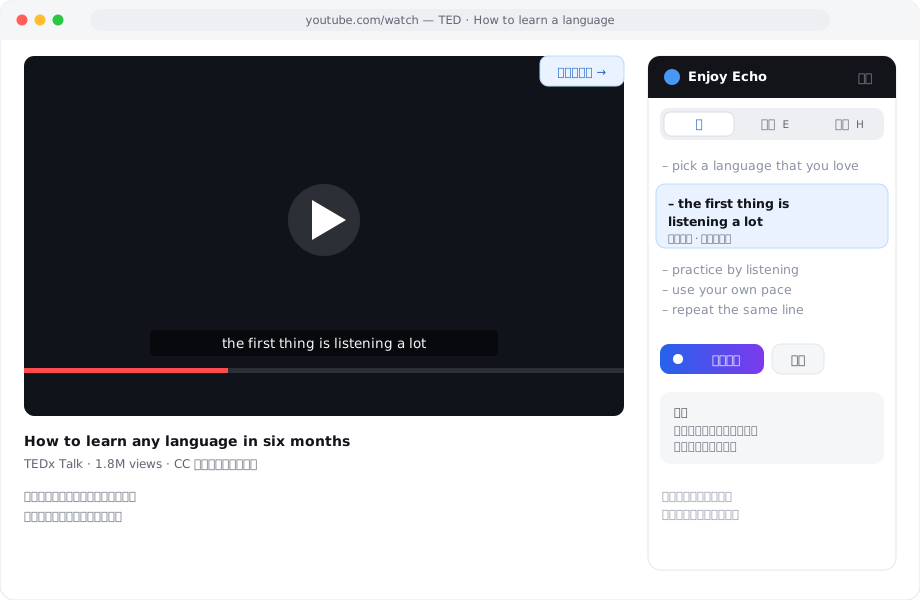
- Open the video page, click the extension icon — the side panel appears next to the video;
- First time, a three-step onboarding: interface language, your language, the three key keys (Space play / E echo / R record).
The video keeps playing on the original page; the panel handles subtitles and practice — a wide window where both are visible works best.
Step 3: the line loop
Section titled “Step 3: the line loop”One full loop on a line (details in Echo (shadowing)):
- Listen: Space plays the line, Shift+, slows it down;
- Echo: E loops the line, R records your take, G plays it back;
- Score: V shows the pronunciation score, down to each word; P shows the pitch contour, blue original and violet you (YouTube’s audio can be captured; Netflix is DRM-restricted and has no original line);
- Passed → D next line; not yet → shrink the region and grind those words ([ ]). When a subtitle splits one sentence across lines, click “Add to loop” at the loop’s edge to stitch the lines back into a whole sentence.
Select any word to look it up and keep it; review later in the web app or Enjoy Player.
A note: no word-by-word highlighting in the panel
Section titled “A note: no word-by-word highlighting in the panel”Platform captions only time the whole line, so the underline can’t follow playback in the extension. Word-level pronunciation scoring is unaffected — Azure assesses your recording against the text word by word, no matter how coarse the caption timing is, so you still see per-word colours and phoneme detail in the panel. Plenty for daily speaking practice; if one talk deserves highlighting too:
A week that works
Section titled “A week that works”- Mon: listen through the whole talk (listen + look up), pick 10 lines you’d love to say as well;
- Tue–Fri: 15 minutes a day, 2–3 of those lines each day (listen → echo → score);
- Weekend: dictate the 5 hardest of the ten; run through vocabulary.
Two talks a month, done well, and you’ll hear the difference in your own voice.
Pair this case with
Section titled “Pair this case with”- Install and Side panel & practice — everything about the extension;
- YouTube & Netflix — platform differences and known issues;
- Lookup & vocabulary — what happens to the words you keep.
Found something wrong or outdated?Open an issue